
Playwright MCP 在爬虫的应用
引言
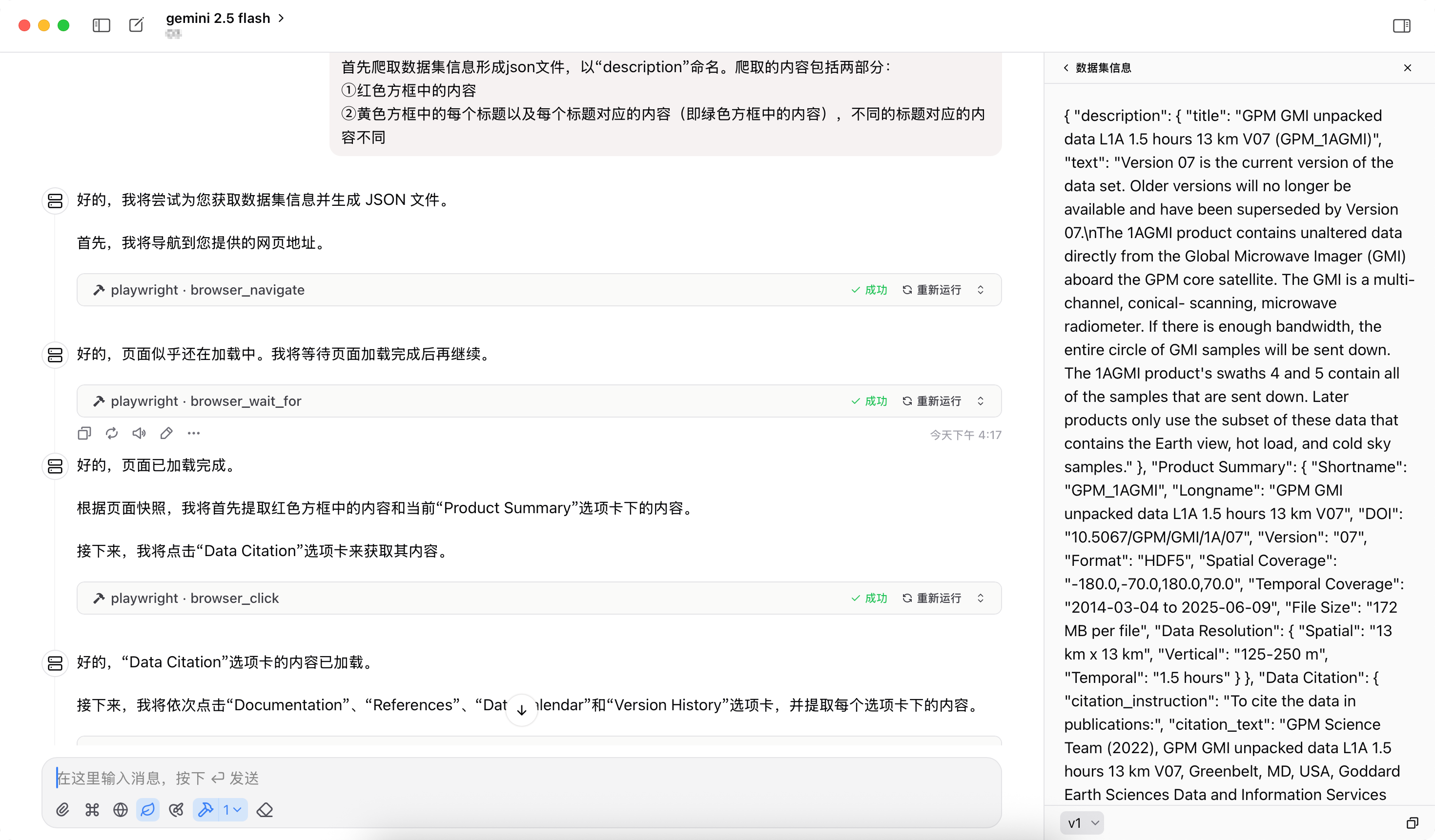
随着互联网的发展和网站结构的日益复杂化,传统的爬虫方法已难以满足高效、智能化的数据采集需求。在此背景下,Playwright MCP 与大语言模型(LLM)的结合为数据抓取带来了全新的可能性。通过这种结合,开发者可以利用自然语言处理能力来简化爬虫开发流程,并提高数据提取的准确性和效率。
什么是 Playwright MCP?
Playwright 是由微软推出的一个强大的浏览器自动化库,支持多种主流浏览器如 Chromium、Firefox 和 WebKit。Playwright MCP 则是基于 Playwright 的服务器解决方案,它通过提供标准化的交互接口,使得 LLM 能够以自然语言的方式控制浏览器执行各种任务,包括但不限于网页抓取、表单提交等。
Playwright MCP 目前有以下两种运行方式:
- 远端浏览器服务
- 本地浏览器服务
按照大模型运行方式分为两种:
- 快照模式(默认):更好的性能和可靠性
- 视觉模式:基于屏幕截图的视觉交互
快速开始
推荐模型:Genmini 2.5 flash 速度、准确性、上下文和价格都有很具有性价比
本地浏览器
你可以在本地很快速的启动你的 MCP 服务,只需要在你支持 MCP 调用的工具中的配置 json 中添加以下配置即可使用。
  json{
  "mcpServers": {
    "playwright": {
      "command": "npx",
      "args": [
        "@playwright/mcp@latest"
      ]
    }
  }
}
如果你使用 Cursor、VSCode等工具,你可以在 这里 找到官方提供的更简单配置方式。
远程浏览器
你可以在远程执行以下命令快速运行 MCP SSE 服务:
npx @playwright/mcp@latest --host 0.0.0.0 --port 8931
此时你可以在工具中配置 json 中添加以下配置即可使用:
  json{
  "mcpServers": {
    "playwright": {
      "url": "http://{ip}:8931/sse"
    }
  }
}而外配置
以下是 npx @playwright/mcp@latest --help 命令中所有参数的中文翻译,并整理为表格形式,便于查阅和理解,使用可以参考远程浏览器的 --host:
| 参数名称 | 英文描述 | 中文翻译 |
|---|---|---|
--allowed-origins <origins> |
semicolon-separated list of origins to allow the browser to request. Default is to allow all. | 允许浏览器请求的来源列表(用分号分隔),默认允许所有来源。 |
--blocked-origins <origins> |
semicolon-separated list of origins to block the browser from requesting. Blocklist is evaluated before allowlist. If used without the allowlist, requests not matching the blocklist are still allowed. | 阻止浏览器请求的来源列表(用分号分隔)。黑名单优先于白名单评估。如果没有指定白名单,未匹配到黑名单的请求仍然被允许。 |
--block-service-workers |
block service workers | 阻止服务工作者(Service Workers)运行。 |
--browser <browser> |
browser or chrome channel to use, possible values: chrome, firefox, webkit, msedge. | 要使用的浏览器或 Chrome 渠道,可选值:chrome、firefox、webkit、msedge。 |
--browser-agent <endpoint> |
Use browser agent (experimental). | 使用浏览器代理(实验性功能)。 |
--caps <caps> |
comma-separated list of capabilities to enable, possible values: tabs, pdf, history, wait, files, install. Default is all. | 启用的功能列表(逗号分隔),可选值:tabs、pdf、history、wait、files、install,默认启用所有功能。 |
--cdp-endpoint <endpoint> |
CDP endpoint to connect to. | 要连接的 Chrome DevTools Protocol 端点地址。 |
--config <path> |
path to the configuration file. | 配置文件的路径。 |
--device <device> |
device to emulate, for example: "iPhone 15" | 要模拟的设备,例如:"iPhone 15"。 |
--executable-path <path> |
path to the browser executable. | 浏览器可执行文件的路径。 |
--headless |
run browser in headless mode, headed by default | 以无头模式运行浏览器,默认是有界面模式。 |
--host <host> |
host to bind server to. Default is localhost. Use 0.0.0.0 to bind to all interfaces. | 绑定服务器的主机名。默认是 localhost,使用 0.0.0.0 表示绑定所有网络接口。 |
--ignore-https-errors |
ignore https errors | 忽略 HTTPS 错误。 |
--isolated |
keep the browser profile in memory, do not save it to disk. | 将浏览器配置保存在内存中,不写入磁盘。 |
--image-responses <mode> |
whether to send image responses to the client. Can be "allow", "omit", or "auto". Defaults to "auto", which sends images if the client can display them. | 是否将图片响应发送给客户端。可选值为 "allow"、"omit" 或 "auto"。默认是 "auto",即当客户端能显示时才发送图片。 |
--no-sandbox |
disable the sandbox for all process types that are normally sandboxed. | 禁用所有本应沙箱化的进程的沙箱功能。 |
--output-dir <path> |
path to the directory for output files. | 输出文件的目录路径。 |
--port <port> |
port to listen on for SSE transport. | 用于 SSE 传输的监听端口。 |
--proxy-bypass <bypass> |
comma-separated domains to bypass proxy, for example ".com,chromium.org,.domain.com" | 绕过代理的域名列表(逗号分隔),例如 ".com,chromium.org,.domain.com"。 |
--proxy-server <proxy> |
specify proxy server, for example "http://myproxy:3128" or "socks5://myproxy:8080" | 指定代理服务器,例如 "http://myproxy:3128" 或 "socks5://myproxy:8080"。 |
--save-trace |
Whether to save the Playwright Trace of the session into the output directory. | 是否将当前会话的 Playwright Trace 保存到输出目录。 |
--storage-state <path> |
path to the storage state file for isolated sessions. | 存储隔离会话状态的文件路径。 |
--user-agent <ua string> |
specify user agent string | 自定义用户代理字符串。 |
--user-data-dir <path> |
path to the user data directory. If not specified, a temporary directory will be created. | 用户数据目录的路径。若未指定,则创建临时目录。 |
--viewport-size <size> |
specify browser viewport size in pixels, for example "1280, 720" | 设置浏览器视口大小(像素),例如 "1280, 720"。 |
--vision |
Run server that uses screenshots (Aria snapshots are used by default) | 运行使用截图的服务器(默认使用 Aria 快照)。 |
数据采集实践
当前我有一个网站,例如:
https://rda.ucar.edu/datasets/d386000/,我需要把网页中的非结构话数据转为 json
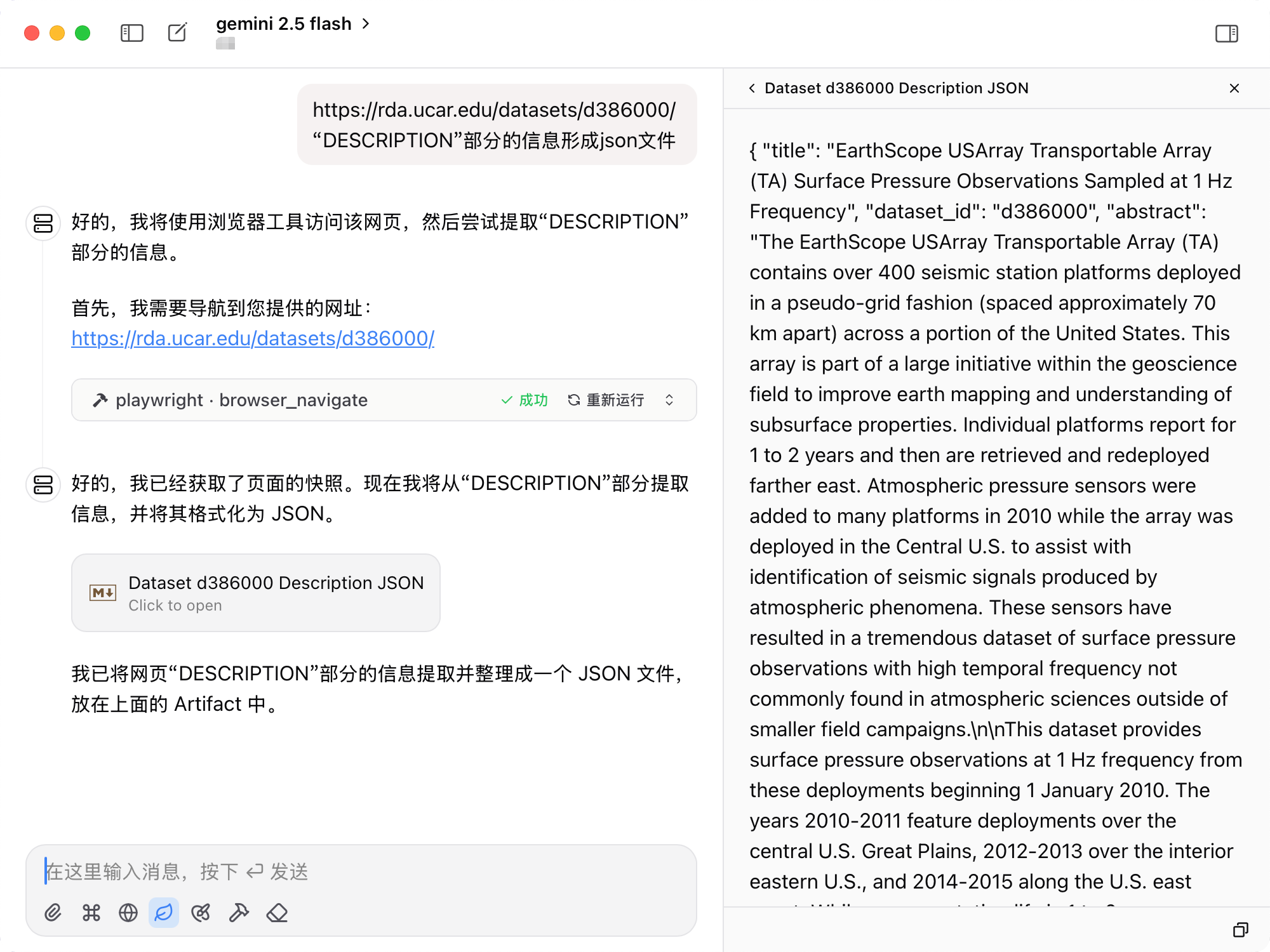
当然这里只是一个简单的示例,你可以通过编写详细提示词让模型从列表页面开始逐个解析页面为结构化数据,目前大模型没有保存文件的能力,你可以添加一个 MCP Filesystem MCP Server 即可让大模型将解析后的数据保存到磁盘。